Guide · version 2.0.0
Use the app at your desk
One app adapts to the space available. A wider window gives profiles and controllers their own sidebar, while the voucher workflow stays the same.
STEP 01
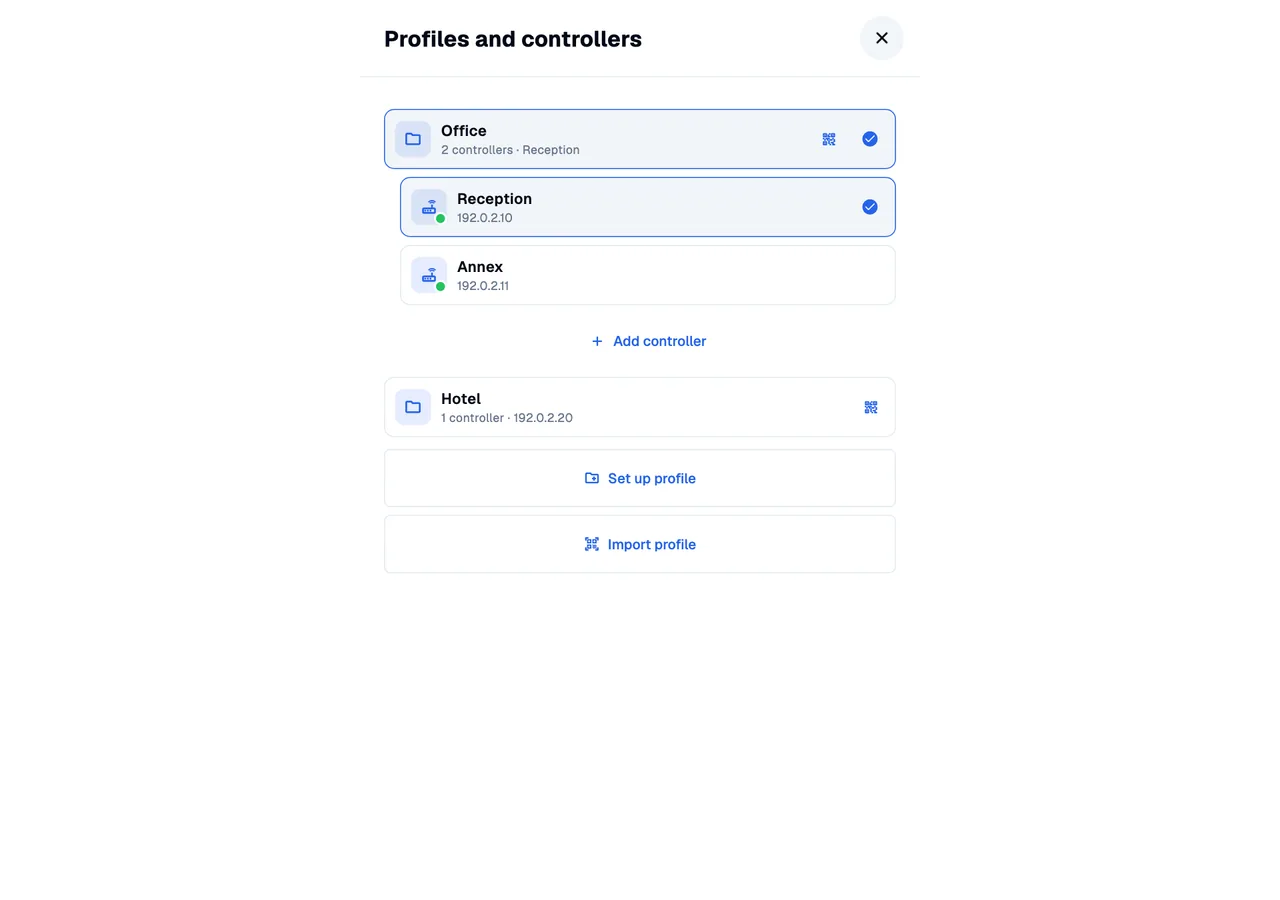
Choose a profile, then a controller.
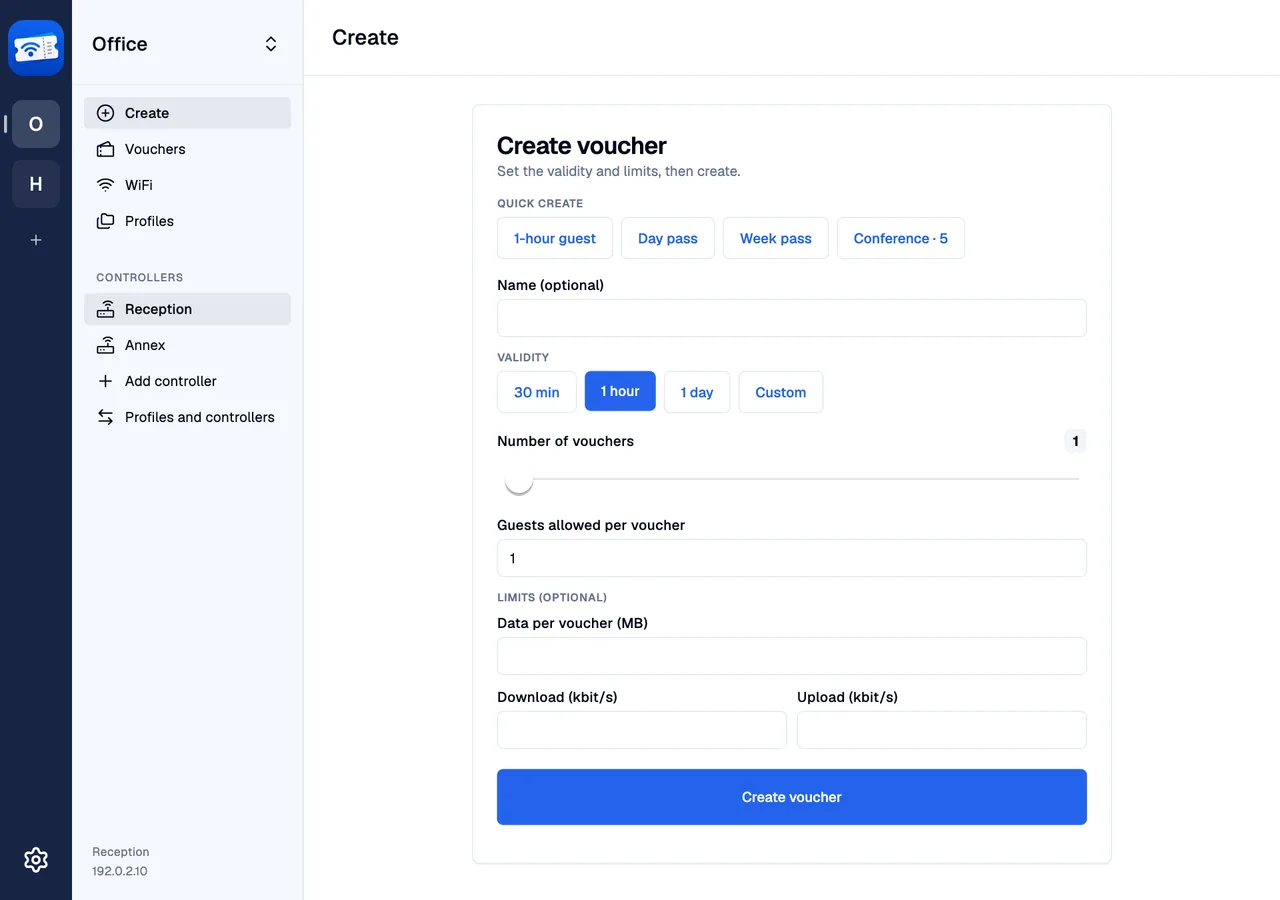
The narrow rail holds profiles. The adjacent sidebar lists the selected profile’s controllers and the main sections. Click a controller to connect without reopening its setup form.
STEP 02
Move between tasks.
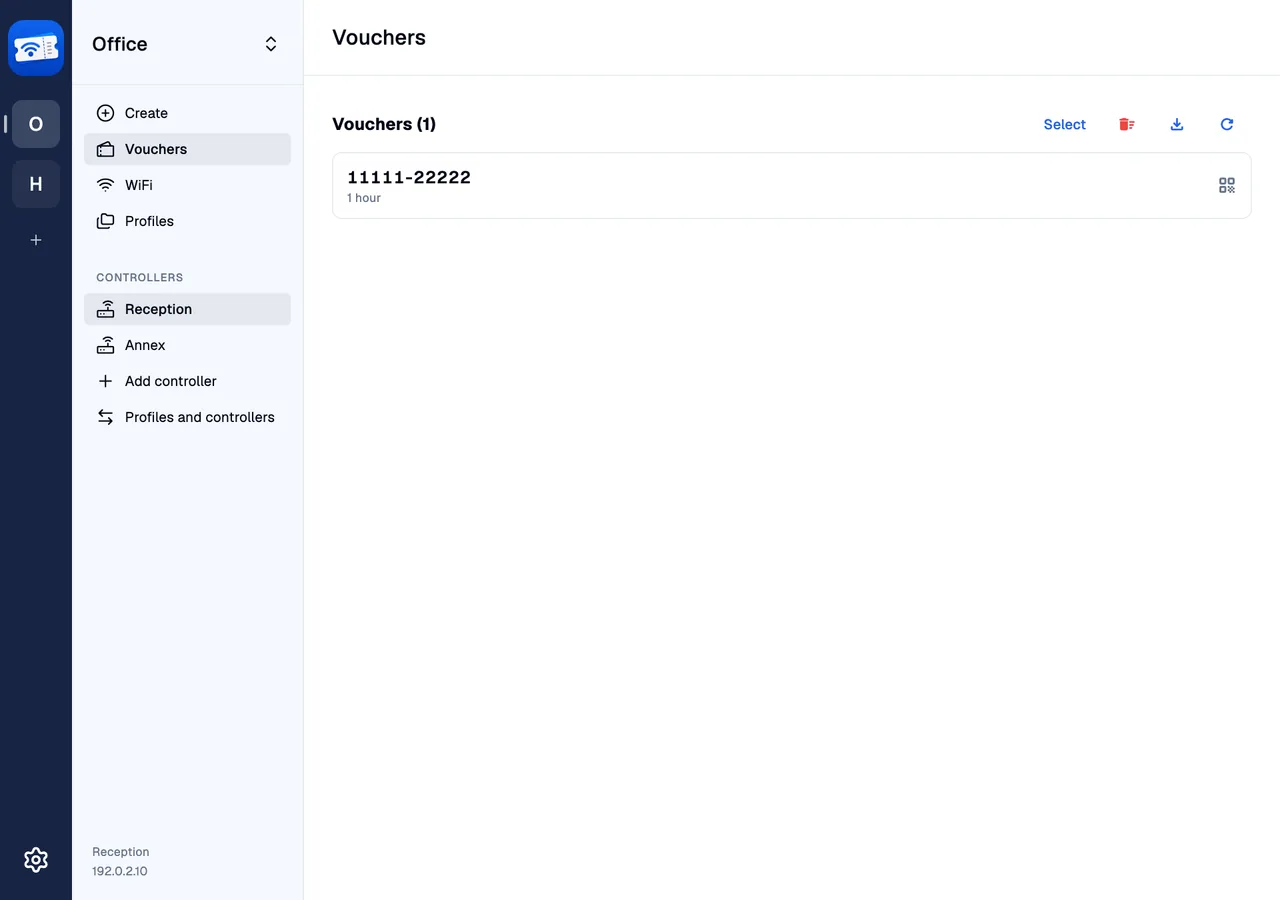
Use the sidebar to create vouchers, review issued codes and manage WiFi. Ctrl or Command plus 1–4 selects the visible sections; Ctrl or Command plus comma opens Settings.
STEP 03
Keep the same workflow on a smaller screen.
In a smaller window, the same app uses a compact layout. The profile switcher is still available. Ctrl or Command plus Shift+P opens it from the desktop workspace.